
Release content on the rhythm,you teach to
Drip in Edushade is not a single switch. Each curriculum item carries its own unlock rule and an optional lock rule, and you can override either one for a single learner — so an evergreen course, a strict weekly cohort and a corporate path can all run on the same platform without copying content around.
Drip rules at every level you actually need them
Edushade gives drip three levels of control — program, item and user — and four unlock modes paired with four lock modes. Pick a program-wide strategy in one click, override individual items where the rule does not fit, and re-schedule for specific learners when somebody needs a different window.
Four Unlock Modes
Make content available immediately, on a fixed date, a number of days after enrollment, or after a prerequisite item is completed.
Four Lock Modes
Optionally lock content again — no lock, on a fixed date, after an enrollment offset, or after a duration since unlock — so time-boxed access is a setting, not a workaround.
Three Levels of Control
Program-level strategy, per-item overrides and per-user re-schedules. The same curriculum can pace differently for different cohorts and different learners.
Five Content Types
Sections, lessons, quizzes, assignments and downloadable files all carry their own drip schedule, not just lessons.
Works on Courses, Paths and Cohorts
Drip rules bind to courses, learning paths and cohorts — the same engine, the same shapes, no parallel feature for each program type.
Per-Learner Re-Scheduling
Give specific learners a new unlock or lock date without touching the program rule — handy for late joiners, makeup access and extended deadlines.
Pick a strategy that fits the whole program
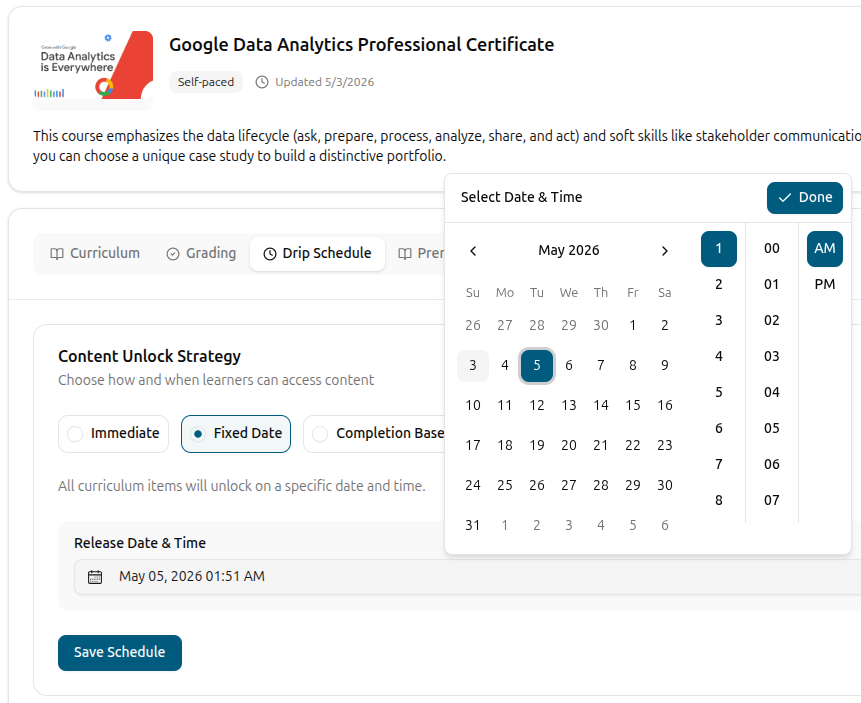
Start at the program level. Choose Immediate to open everything on enrollment, Fixed Date to release the entire curriculum on a specific date and time, Completion-Based to make learners progress in order, or Custom when you need item-by-item rules. The strategy applies to the bound course, learning path or cohort and shows a one-line summary of what learners will experience.
Immediate, Fixed Date, Completion-Based and Custom strategies
Program-level rule applies to courses, learning paths and cohorts
Plain-language strategy descriptions on the admin screen
Save once and the schedule applies across the curriculum tree
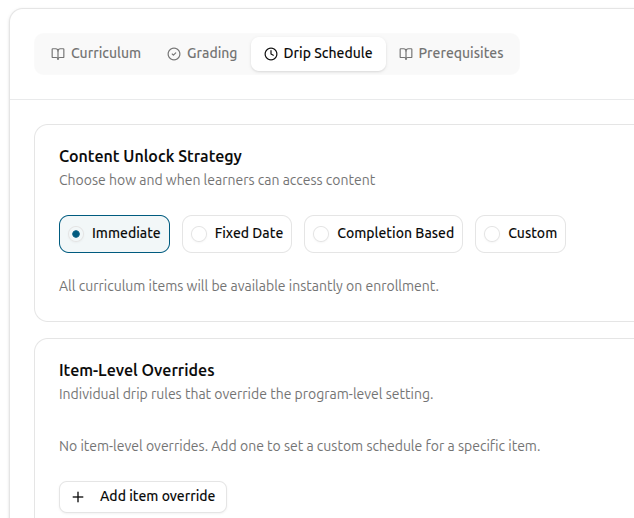
Override individual items when one rule does not fit
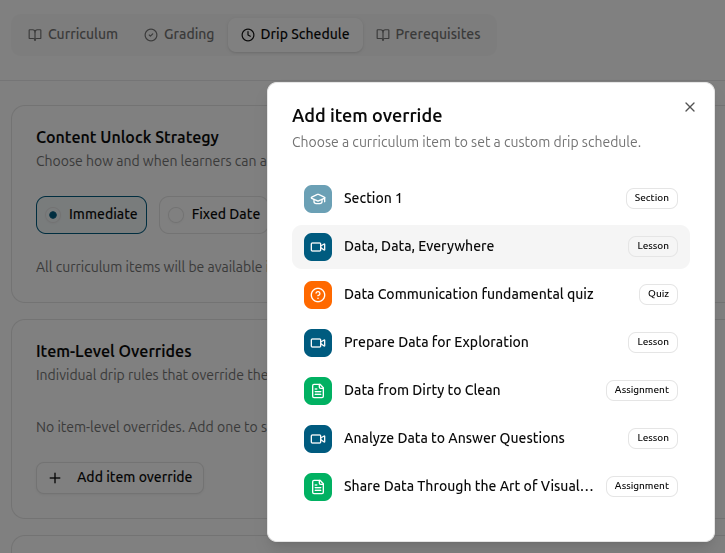
Most curriculum items follow the program rule, but a few rarely do. With item-level overrides you can pin a single section to a date, gate one quiz behind a prerequisite, or make one downloadable file available days after enrollment — without changing the program-wide setting. Edushade lists every item with an override in one place so the exceptions stay visible.
Per-item unlock: Immediate, Fixed Date, Enrollment Offset, Completion-Based
Item-level overrides shown in a dedicated panel with edit and remove
Bulk-edit drip across multiple items in one go
Pick a prerequisite from any item in the curriculum tree
Lock content when it should not stay open forever
Unlock rules decide when learners get in. Lock rules decide when they cannot anymore. Set a fixed lock date for a deadline, lock content a number of days after enrollment, or close access a duration after the item unlocks — the closing-window equivalent of a self-paced rule. Drip badges on the learner side show locked, closed and prerequisite states with the right copy automatically.
Lock on a fixed date, an enrollment offset or duration after unlock
Lock dates supported up to 365 days for both enrollment and unlock offsets
Locked, closed and prerequisite states surface as learner-side badges
Lock rules are optional — pair them only with the unlock rules that need them
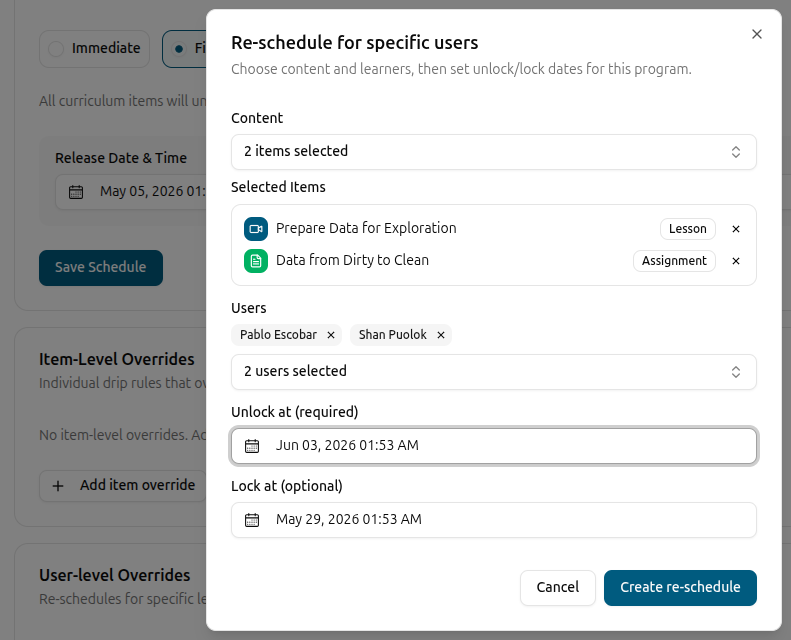
Re-schedule for specific learners, not the whole course
When one learner needs a different window — a late joiner, a paused enrollment, a makeup deadline — Edushade lets you create a user-level override on a single curriculum item. Pick the users, set new unlock and lock dates, save. The default schedule keeps running for everyone else, the override runs only for the people you selected, and the panel shows you exactly who has a custom window.
Re-schedule unlock_at and lock_at for a specific list of learners
User-level overrides listed with name, email and target item
Edit or remove an override anytime — learners fall back to the default
Audit fields capture who created and last updated each override
From open content to scheduled drip in three steps
The Drip Schedule manager lives next to your curriculum builder. Pick a program-wide strategy, override the items that need it, then re-schedule for individual learners when something changes.
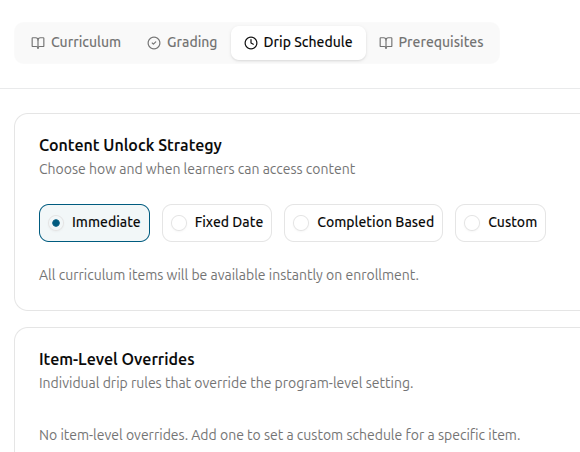
Pick the program strategy
Open the Drip Schedule tab and choose Immediate, Fixed Date, Completion-Based or Custom. Edushade shows a plain-language summary so you know exactly what learners will see when they enroll.
Override individual items
For the items that need a different rule, open the drip editor on a single item or use bulk-edit on a selection. Set unlock and lock modes — fixed date, enrollment offset, completion-based or duration after unlock.
Re-schedule for specific learners
If a learner needs their own window, add a user-level override — pick the curriculum item, choose the learners, set new unlock and lock dates. Everyone else keeps following the program-wide schedule.
Drip Content FAQ
How drip schedules work in Edushade — strategies, overrides, lock rules and per-learner re-scheduling across courses, learning paths and cohorts.
Can't find what you're looking for?
Contact Sales

Start Building Learning Your Way
Set up courses, programs, and learning experiences without forcing your process into rigid software. A connected system for students, educators, and administrators.
Build Your Academy