
More than a score — the whole record,of every attempt
A grade in a column doesn't tell you much. Edushade keeps the full record of every quiz and exam attempt — start time, submission time, time spent, total and obtained score, percentage, pass or fail, IP and user agent for audit, the per-question breakdown, the shuffle order it was taken in. The objective questions auto-grade the moment a learner submits; the free-form ones land in a manual-review queue with a feedback box that fires the graded notification when you save.
What's actually in the box when you grade with Edushade
Every attempt is a complete record — timing, scoring, per-question status, audit fields, shuffle order. The auto-grader handles a dozen objective question types; the manual-review queue handles the subjective ones. Notifications close the loop. The CSV export lands ready for the registrar.
A Dozen Auto-Graded Question Types
Multiple choice (single + multi), true/false, matching, ordering, fill-in-blank with multiple acceptable answers and per-blank case sensitivity, numeric with tolerance, math response, hotspot, categorize, labelling and dropdown — all graded the moment the learner submits.
Five Per-Question States
Each answer carries a status — correct, incorrect, partial, skipped or pending review — surfaced as five count chips on the attempt's headline, so a class scan is a glance.
Manual-Review Queue With Feedback
Free-form questions and anything you flag for manual review land in a per-attempt evaluator with a feedback box. Save and the platform recalculates the percentage, marks pass or fail and fires the quiz.graded event.
Every Attempt Stored, Shuffle Order Included
The platform never overwrites an old attempt with a new one. Each attempt carries its own number, score, time, IP, user agent and the JSONB shuffle order it was taken in — so a contested question can be reviewed in the exact form the learner saw it.
Per-Quiz Leaderboard
A paginated leaderboard endpoint returns the best attempt per learner with rank, participant, score, percentage, time spent and status. Show it to learners (or keep it admin-only) per the show-merit-list-to-learner toggles on the quiz.
Bulk Attempts CSV Export
The bulk attempts export pulls every attempt across the program with the full audit row — ID, learner, score, percentage, status, timing, IP, user agent — ready for grade-book reconciliation or an external transcript system.
An attempt page that carries the whole story
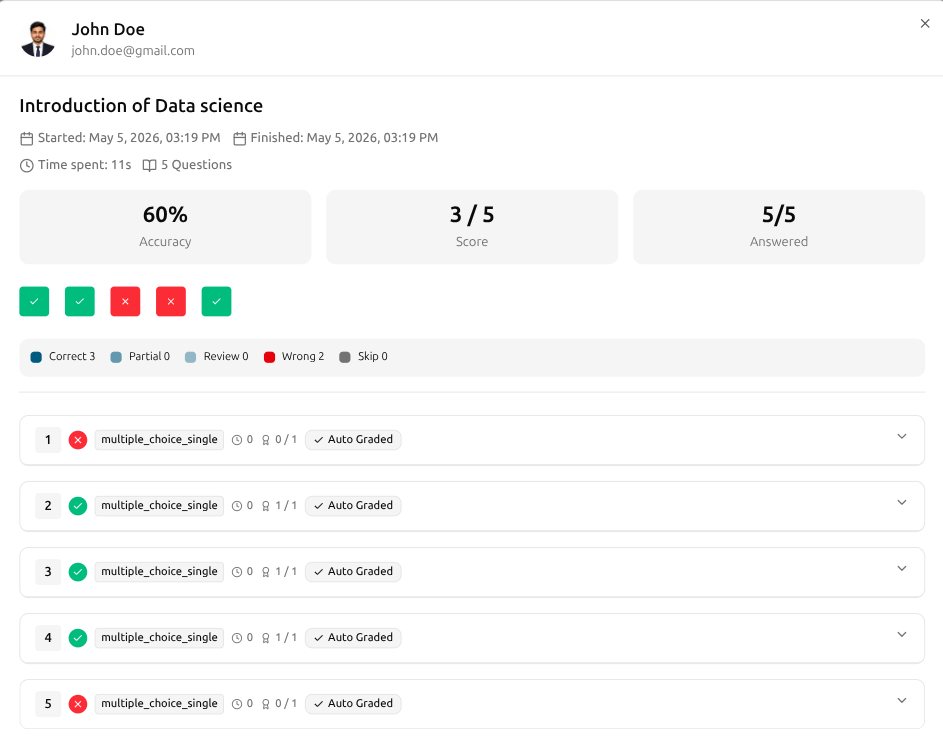
Open an attempt and the whole story sits on one page. Three big stats up top — Accuracy, Score, Answered. A row of green-and-red chips maps every question at a glance, with a five-way legend counting Correct, Partial, Review, Wrong and Skip. Below that, every question on its own row with its type, time spent, score awarded and an Auto Graded tag — expand any one for the learner's answer next to the correct one.
Three headline stats — Accuracy, Score, Answered
Per-question status chips with a Correct / Partial / Review / Wrong / Skip legend
Every question listed with type, time, score and graded status
Expand a question for the learner's answer alongside the correct one
Auto-graded where it can be, manual-reviewed where it should be
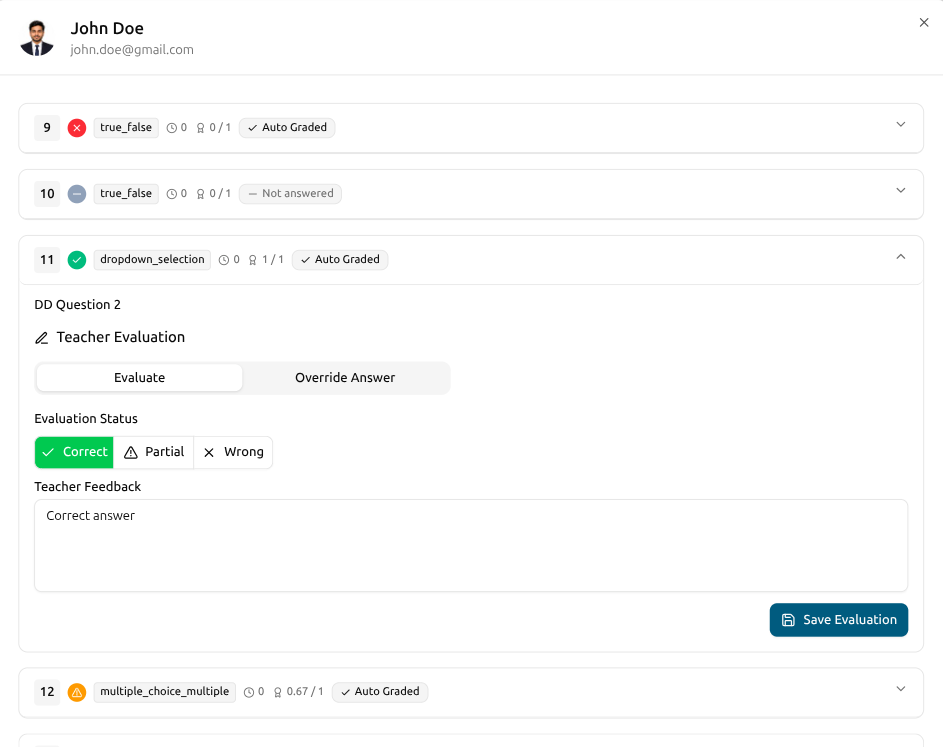
Most questions grade themselves the moment a learner submits — true/false, dropdowns, multiple choice, numeric and the rest carry an Auto Graded tag. The free-form ones land in a Teacher Evaluation panel where you mark Correct, Partial or Wrong, leave feedback and hit Save. Need to override an auto-grade? The Override Answer tab is right there. Save and the totals recompute on their own.
Auto Graded tag on every objective question type
Teacher Evaluation panel for the questions that need a human
Mark Correct, Partial or Wrong with a feedback box
Override Answer tab to correct an auto-grade when needed
When auto-grading misses, override the answer in one click
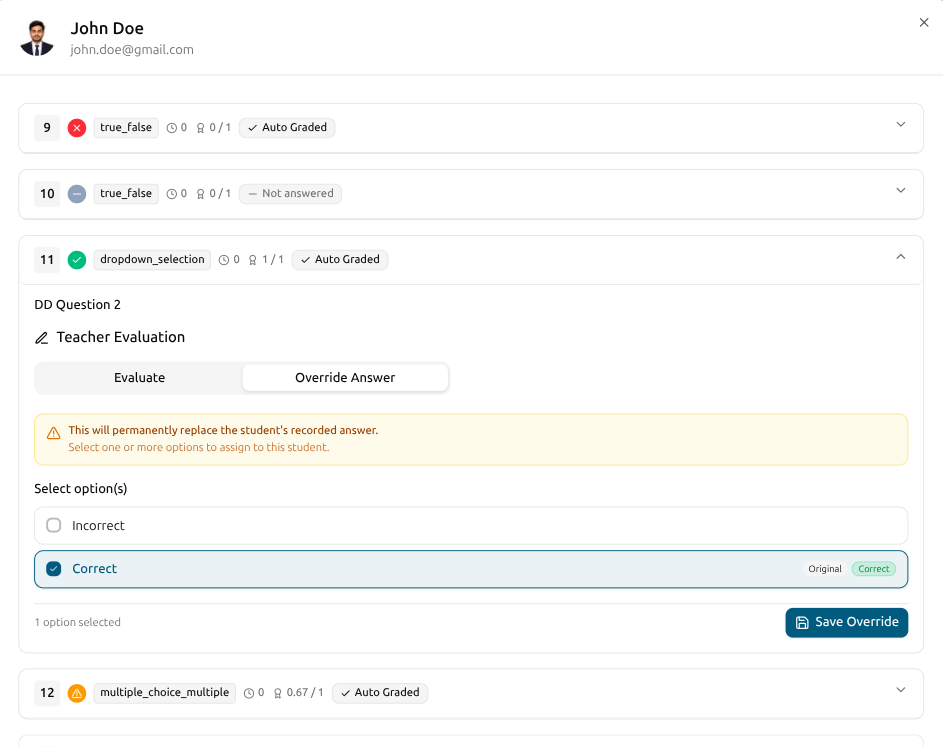
Sometimes the auto-grader doesn't agree with what you'd actually count — a typo, a synonym, a partially right answer. Open the question, switch to Override Answer, pick the option(s) that should count and hit Save Override. The student's original answer stays on the record with an Original badge; the new one takes over for scoring.
Override Answer tab on every auto-graded question
Pick one or more options to assign as the correct answer
Original answer kept on the record with an Original badge
Totals and pass/fail recompute automatically after Save
From the individual to the cohort, in one click
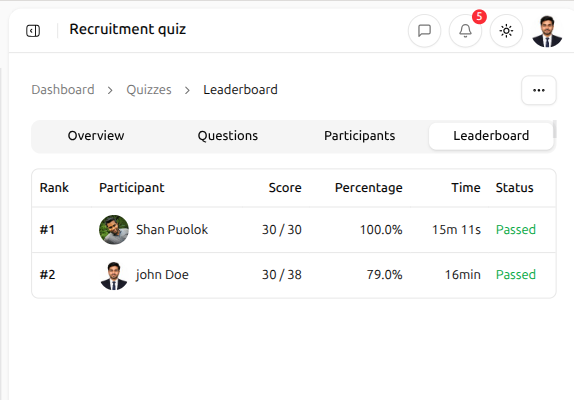
Switch to the Leaderboard tab on any quiz and the cohort lines up by rank — each learner's best attempt with their score, percentage, time and Passed / Failed status. Spot the top finishers, the ones still working, the ones who slipped through. One table, one source of truth.
Columns — Rank, Participant, Score, Percentage, Time, Status
Best attempt per learner shown on the leaderboard
Quick tabs — Overview, Questions, Participants, Leaderboard
Show to learners or keep it admin-only from the quiz settings
From a learner submitting to you having taught something new
Most of this happens on its own. The instructor only steps in for the questions that need judgement — and even then, the workflow is one queue, one feedback box, one save.
Learner submits the attempt
Auto-graded questions are scored the moment the learner hits submit. The result page lands with Accuracy, Score and Answered up top, a row of green-and-red chips for every question and a per-question list — type, time, score and Auto Graded tag — ready to drill into.
Review the manual ones, override when needed
Open the evaluator and switch to Override Answer when an auto-grade got it wrong. Pick the option(s) that should count, hit Save Override and the platform recomputes the totals — pass/fail flips on its own and the learner gets the quiz.graded notification.
Read every attempt, export when asked
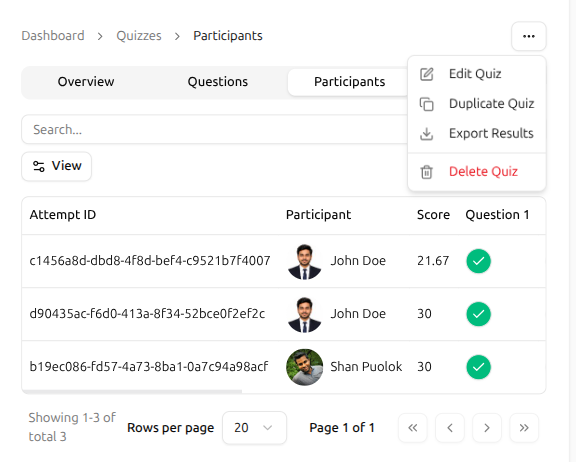
Open the Participants tab and every attempt across the cohort lines up in one table — Attempt ID, Participant, Score and a quick pass indicator, page after page. Hit the menu top-right and pick Export Results when finance, the registrar or compliance asks for the records.
Assessment Results FAQ
What instructors and registrars ask before they trust a platform with grading.
Can't find what you're looking for?
Contact Sales

Start Building Learning Your Way
Set up courses, programs, and learning experiences without forcing your process into rigid software. A connected system for students, educators, and administrators.
Build Your Academy